You press the power button and nothing happens. No fan noise, no logo, no light. When your laptop won’t turn on, the first thought is usually that the whole machine is dead and every file on it is gone.
That is rarely the case. A laptop that won’t turn on is often a power delivery problem, a drained battery or a frozen power state, and all three can be checked in a few minutes at home. This guide walks through the checks in order, explains what each result means, and shows you the point where it makes sense to stop and hand it to a technician.
| Quick Answer If your laptop won’t turn on, first check a safe wall socket and a known-compatible charger, then follow the manufacturer’s power-reset procedure for your model. Skip power-on tests after liquid damage, swelling or a burning smell. No charging light and fans running with a black screen are different symptoms. Either can need diagnosis; neither proves that the motherboard or battery has failed. |
Key Takeaways
- A faulty charger or a dead wall socket causes a large share of ‘dead laptop’ cases, so test those first.
- A model-appropriate power reset can clear a frozen power state. Follow the manufacturer’s instructions; timings and battery steps vary.
- Fans spinning with a black screen is a different problem from a completely silent laptop, and each points to a different cause.
- Liquid exposure, a hot bag or a sudden power cut change the picture: avoid repeated power-on attempts and have it checked.
- Motherboard-level faults in the laptop’s power circuit are repairable in many cases, and your data may still be recoverable.
Start With the Simple Checks
Before you assume anything is broken inside the laptop, check the things outside it. Plug the charger into a different wall socket you know works, such as one running a lamp. Look along the cable for kinks, bent pins or a frayed section near the connector. Check that the adapter’s own light, if it has one, is on.
Then look at the laptop itself. Most laptops have a small charging LED near the charging port or the front edge. If that light comes on when you plug in, the charger and port are delivering power. If it stays dark with a charger you trust, the fault is more likely in the charging port, the battery or the board.
8 Common Reasons a Laptop Won’t Turn On
- A failed or underpowered charger. Adapters wear out, and a cheap replacement with the wrong wattage may power the laptop on and then fail under load.
- A completely drained battery. A battery left flat for weeks can take several minutes on the charger before the laptop responds.
- A frozen power state. Sleep or hibernate faults can leave the machine looking dead even though it has power.
- A damaged charging port. Loose or bent contacts mean the laptop only charges when the cable is held at an angle, or not at all.
- A faulty battery. A worn or swollen battery can stop the laptop starting, even with the charger connected.
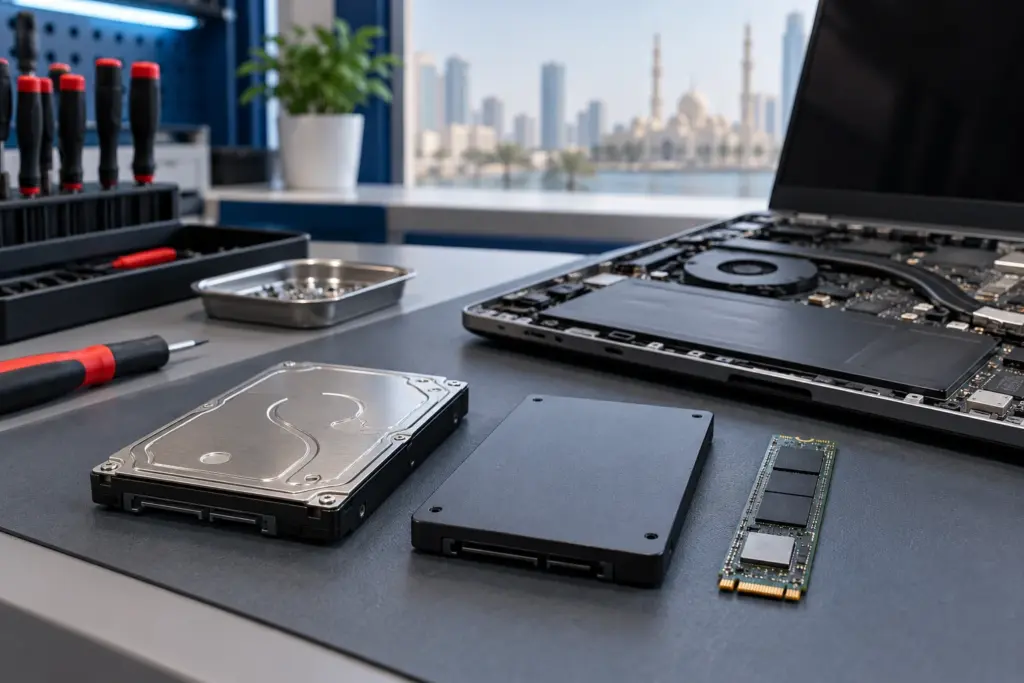
- Loose or failed RAM or storage. Some laptops stay silent or show a black screen if memory has shifted or a drive has failed.
- Liquid damage. Moisture can corrode the power circuit and cause the laptop to shut down and refuse to restart.
- A motherboard fault. A failed power regulator or a short on the board can stop the laptop from powering on at all.
What You’re Seeing and What It Usually Means
| What You’re Seeing | Likely Cause | Try This First |
|---|---|---|
| No lights, no fans, no sound | Charger, battery or power circuit | Test another charger and socket, then hard reset |
| Charging light on, nothing else happens | Frozen power state or drained battery | Charge for 30 minutes, then hard reset |
| Fans spin, screen stays black | Display, RAM or graphics fault | Connect an external monitor |
| Powers on for a second, then shuts off | Battery, overheating or board fault | Remove charger, try on battery or charger only |
| Beeps or blinking lights at startup | Memory or hardware error code | Note the pattern and check the model’s manual |
| Stopped working after a spill | Liquid damage | Switch off, do not retry, bring it in |
How to Troubleshoot a Laptop That Won’t Turn On
Work through these steps in order. Each one rules out a cause, and none of them needs tools.
- Disconnect everything: charger, USB devices, external drives, SD cards and dongles.
- Remove a battery only if it is designed to be removed externally without tools and the manufacturer’s reset instructions call for it. Do not open the base or handle a swollen battery.
- Follow the power-button timing in the model’s official reset instructions. On some Windows laptops with a removable battery this is around 15–30 seconds; built-in-battery models and Macs can need a different procedure.
- Plug in only the charger and wait 15 to 30 minutes, since a deeply drained battery needs time before it responds.
- Press the power button once and watch for lights, fan noise or any change on the screen.
- If it starts, leave other accessories disconnected for the first restart, then reconnect them one at a time.
If you see lights or hear the fan but the screen stays black, shine a torch at the display at an angle. A faint image can suggest a backlight or backlight-power problem, but it is not a complete diagnosis. You can also connect an external monitor or TV through HDMI. If the external screen shows your desktop, that helps narrow the fault towards the internal display path, but it does not rule out every board or software issue.
Fans Spinning vs Completely Dead: Why It Matters
A laptop that does nothing at all points towards power: the adapter, the charging port, the battery or the board’s power circuit. A laptop that spins its fans and lights up the keyboard but shows nothing on screen is receiving power and failing somewhere later in the startup chain. That points towards RAM, the display, the graphics chip or the storage drive.
Telling a technician which of the two you are seeing speeds up the diagnosis, because it narrows the search before the laptop is even opened.
Mistakes That Make a Dead Laptop Worse
- Pressing the power button repeatedly after a liquid spill. Power through a wet board can short components that could otherwise have been saved.
- Using a universal charger with the wrong voltage or wattage. An incorrect adapter can damage the power circuit.
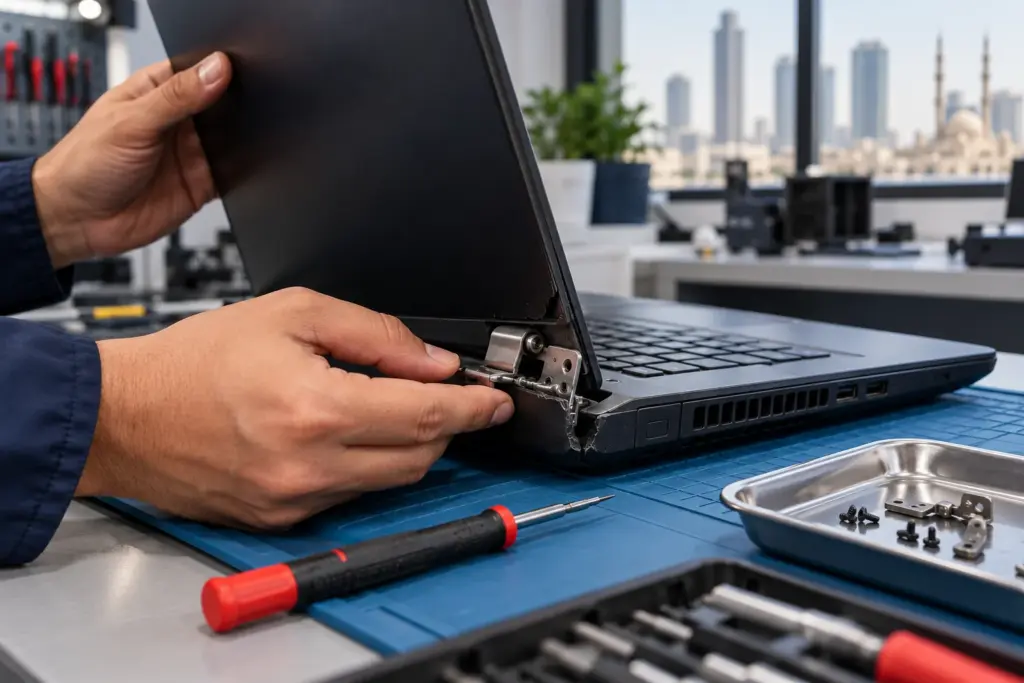
- Opening the laptop without knowing the screws and clips. Cracked casings and torn ribbon cables are common results.
- Leaving a swollen battery in place. If the base looks bulged or the trackpad is lifting, stop charging it and have it checked.
- Using heat, such as a hairdryer, to ‘dry’ a laptop. Heat spreads moisture further in and can warp plastic.
When a Laptop That Won’t Turn On Needs Motherboard Repair
If a different charger, a hard reset and an external monitor test change nothing, the cause is often on the motherboard. Common faults include a failed power regulator, a short circuit left by liquid exposure, damaged charging circuitry or a stressed solder joint after a knock.
This is component-level work done under magnification. In many cases the fault is isolated to one part of the board, which makes repair a realistic alternative to replacing the whole laptop. The storage may be removable or soldered to the board, depending on the model. Data recovery depends on the fault, drive condition and encryption; it is not guaranteed. Preserve any recovery keys and avoid repeated power-on attempts after damage.
Charger, Battery or Port: How to Tell Which One Failed
Three parts share the job of getting power into a laptop, and each fails in a recognisable way. Knowing which one is at fault saves you from replacing the wrong part.
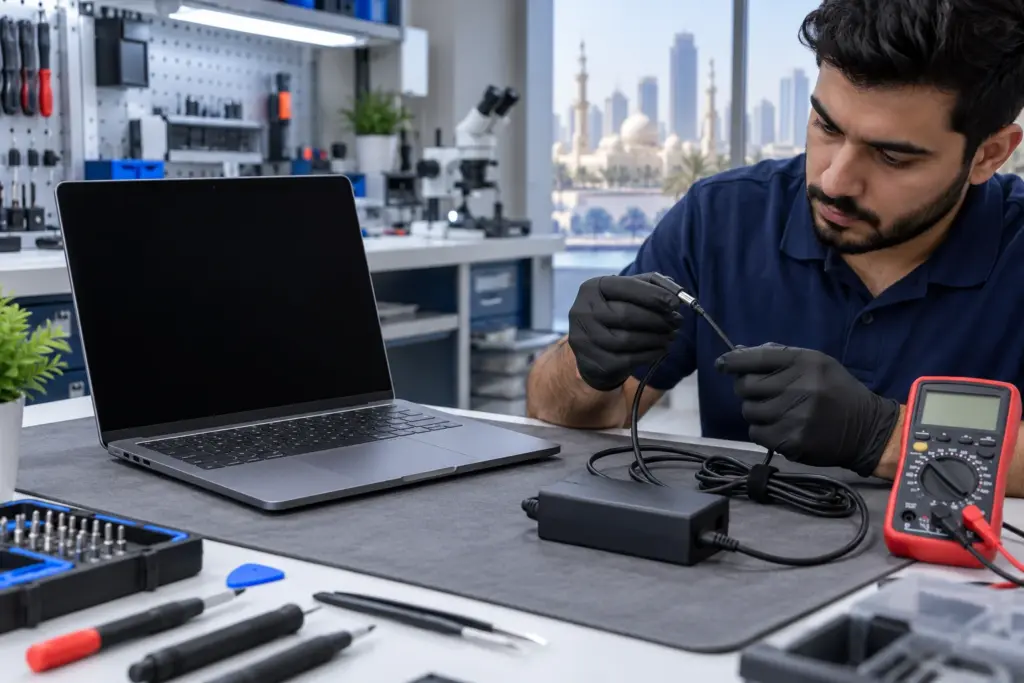
- The charger. If the adapter’s light is off, the cable is hot at one end, or a different compatible charger makes the laptop start, the original adapter has failed.
- The charging port. If the laptop charges only when the cable is held at an angle, or the connector feels loose, the port’s contacts are worn or the solder joints have cracked.
- The battery. If the laptop starts on the charger but shuts off the moment you unplug it, or the battery percentage jumps around, the battery is the weak link.
If none of the three explains it, the fault is further inside, in the power circuit on the motherboard.
How to Avoid Power Problems in Future
- Use a manufacturer-approved or known-compatible charger with the required voltage, connector or USB-C power profile, and sufficient wattage. Cheap unbranded adapters are a common cause of power faults.
- Don’t leave the laptop in a hot car or on a sunlit table. UAE summer heat shortens battery life and stresses the power circuit.
- Don’t pull the charger out by the cable, and don’t let the laptop hang from the charging port.
- Shut the laptop down properly now and then instead of always closing the lid, so that sleep and hibernate faults don’t build up.
- Back up your files regularly. If the laptop ever fails to start, your data is already safe somewhere else.
What to Expect Getting It Fixed in Sharjah
Bring the laptop and its charger to the shop. A technician tests the adapter, checks the power circuit and confirms the fault before anything is replaced, and you get a free quote before work starts. Laptop motherboard repair is offered as a walk-in service. Ask the technician to confirm model support, repair feasibility and the warranty terms for the work quoted.
Frequently Asked Questions
Why won’t my laptop turn on even though it’s plugged in?
The charger may have failed, the charging port may be damaged, or the battery may be so drained that it needs time on the charger. A hard reset and a test with a known-good charger rule out the simplest causes first.
How do I hard reset a laptop that won’t turn on?
Use the model’s official power-reset procedure. Disconnect accessories and remove only a tool-free, user-removable battery if the guide requires it. Do not open the base or attempt resets after a spill, swelling or a burning smell.
Can a dead laptop battery stop the laptop from turning on?
A faulty battery can prevent startup on some models. If the base bulges or the trackpad lifts, stop using and charging the laptop and arrange professional inspection; do not remove an internal battery or try repeated power-on tests.
My laptop turns on but the screen stays black. Is that the same problem?
No. Fans and lights without a picture usually point to the display, RAM or graphics hardware rather than the power circuit. An external monitor test helps tell them apart.
Will I lose my files if my laptop won’t turn on?
Not necessarily. Files may remain on the internal storage, but recovery depends on the model, damage, encryption and available recovery keys. Some laptops have soldered storage; ask for a data-preserving diagnosis before work begins.
How much does it cost to fix a laptop that won’t turn on?
It depends on the cause, from a replacement charger to a board-level repair, so the quote is confirmed free after a diagnostic.
The Bottom Line
A laptop that won’t turn on feels final, but most cases start with a short list of causes you can check yourself: the charger, a drained battery and a frozen power state. When those checks change nothing, especially after a spill, a knock or a sudden power cut, the next step is a proper diagnostic rather than another round of button pressing. Bring it in for a free assessment and a clear answer on repair, backed by a 6-month parts warranty.