Your laptop takes a minute or more to start, programs hang when you open them and the fan runs while you wait. Before you buy a new laptop, it is worth looking at what is inside the old one. In the SSD vs HDD question, the storage drive is often the single biggest reason an older laptop feels slow.
This guide explains the difference between the two drive types, shows where an SSD makes a real difference, and covers the cases where an upgrade is not possible or not worth the money.
| Quick Answer An SSD (solid-state drive) has no moving parts and is much faster than an HDD (hard disk drive), so it speeds up startup, app loading and file transfers. An HDD costs less per gigabyte and suits bulk storage. For most laptops that still run on an HDD, upgrading to an SSD is the most noticeable speed improvement available. |
Key Takeaways
- An SSD uses flash memory with no moving parts, which makes it faster, quieter, cooler and more resistant to knocks than an HDD.
- An HDD uses spinning platters and a moving read head, which makes it slower but cheaper for large amounts of storage.
- Replacing an HDD with an SSD is usually the biggest speed upgrade for a slow laptop, ahead of adding RAM in many cases.
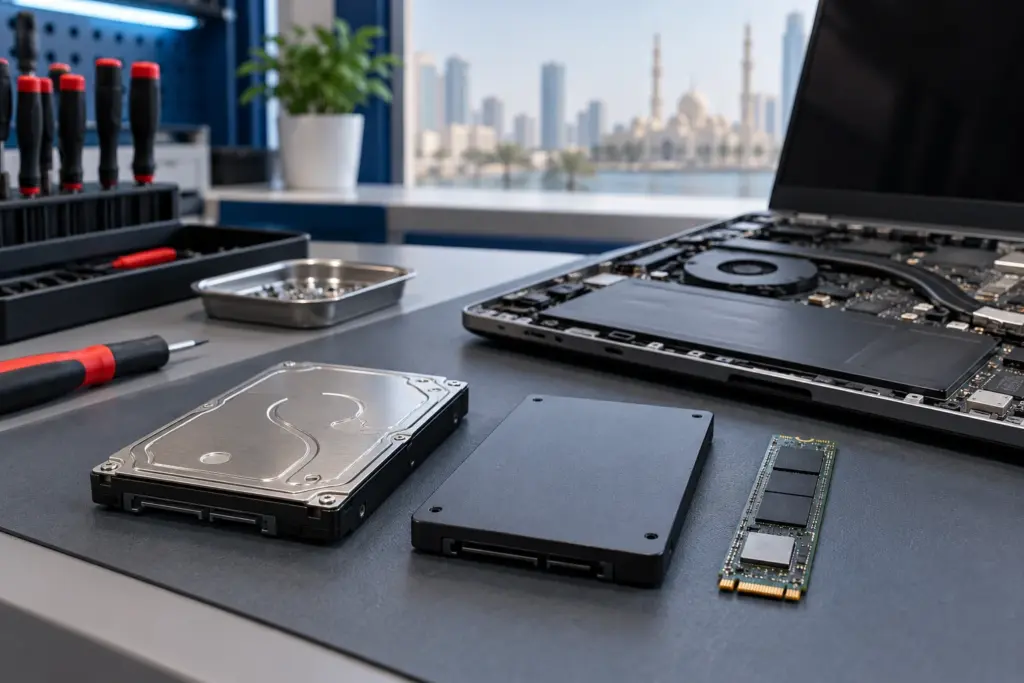
- Check which drive type your laptop uses (2.5-inch SATA, M.2 SATA or M.2 NVMe) before buying, because they are not interchangeable.
- Some laptops, including many newer thin models and MacBooks, have soldered storage that cannot be upgraded.
What Is the Difference Between an SSD and an HDD?
Both are storage drives, and both hold your operating system, programs and files. The difference is how they store and read data.
An HDD stores data on spinning magnetic platters. A read head moves across the platter to find each piece of data, a bit like a record player. An SSD stores data in flash memory chips and reads them electronically. There is nothing to spin up and no head to move, which is why an SSD responds almost instantly.
SSD vs HDD: Side-by-Side Comparison
| Factor | SSD | HDD |
|---|---|---|
| Speed | Much faster for startup, app loading and file transfers | Slower, especially when the drive is busy |
| Moving parts | None | Spinning platters and a read head |
| Durability | Better resistance to drops and knocks | More vulnerable to impact while running |
| Noise and heat | No mechanical noise; operating temperature depends on model and load | Audible spin and clicks, produces more heat |
| Power use | Often lower for everyday tasks; compare the specific models | Higher |
| Cost per gigabyte | Higher | Lower |
| Best for | Operating system, apps, everyday work | Large archives and backups |
Signs Your Laptop’s Storage Is Holding It Back
- The laptop takes a long time to reach the desktop after you press the power button.
- The whole system freezes for a few seconds when you open a program or a large file.
- The drive light stays on or Task Manager shows disk usage at 100% while you are doing very little.
- You hear clicking, grinding or constant spinning from the laptop.
- Files take a long time to copy, or the laptop slows down badly when updates install.
If your laptop is several years old and still has an HDD, storage is a likely cause of the slowdown. A laptop that already has an SSD and is still slow usually has a different issue, such as low RAM, heat, too many startup programs or a nearly full drive.
SATA SSD vs NVMe SSD
Not every SSD is the same. A SATA SSD uses the same connection standard as older hard drives and is the common upgrade for laptops with a 2.5-inch drive bay. An NVMe SSD uses PCIe and commonly comes in an M.2 form factor. An M.2 socket may support SATA, NVMe or both, so check the exact interface, physical size and model support rather than assuming every M.2 drive will work.
This is why the model number matters. A technician checks which connection your laptop supports before choosing a drive, so the part you buy actually fits and works.
What Happens to Your Files During an Upgrade?
You do not have to lose your data. There are two common routes:
- Clone the old drive to the new SSD. Your operating system, programs and files are copied across, so the laptop starts up the way you left it.
- Install a fresh copy of the operating system on the new SSD, then move your files across. This gives you a clean start and removes accumulated clutter.
The right route depends on drive health, encryption, software condition and the destination capacity. Do not attempt routine cloning on a mechanically failing drive; prioritise recovery of important files first.
When an SSD Upgrade Is Not Worth It
- The laptop is very old and its processor or RAM is the real limit. A new drive will speed it up, but the machine will still struggle with modern software.
- The storage is soldered to the board, which is the case in many thin laptops and most recent MacBooks. These cannot be upgraded by swapping a drive.
- The laptop already has an SSD. The slowdown is coming from somewhere else, and a different fix is needed.
- The drive is failing and the laptop has other faults. Check the whole machine before you commit to a repair.
Should You Upgrade? A Quick Decision Guide
| Your Situation | Upgrade to SSD? |
|---|---|
| Laptop has an HDD and feels slow at startup and when opening apps | Yes, this is the most likely fix |
| Laptop has an HDD and makes clicking or grinding noises | Stop using a drive that grinds or clicks abnormally; seek a data-recovery assessment before upgrading |
| Laptop has an SSD and is still slow | No, look at RAM, heat and startup programs |
| Storage is soldered to the motherboard | Not possible, consider other upgrades |
| You need several terabytes for archives | Add an SSD for the system and keep an HDD for storage |
How Much Faster Is an SSD in Daily Use?
The difference shows up in the moments you notice every day. The laptop reaches the desktop sooner after you press the power button. Programs open without a pause. Large files copy faster, and updates install without the machine grinding to a halt.
Because an HDD has to move a physical head to find data, it slows down badly when several things happen at once, such as an antivirus scan during startup. An SSD handles those moments far better, which is why the change feels bigger than the specification sheet suggests.
How Long Do SSDs and HDDs Last?
An HDD has moving parts, so it wears mechanically and can be damaged by knocks or drops while it is running. Clicking, grinding or repeated freezing are signs of an HDD in trouble.
An SSD has no moving parts. Its flash memory is rated for a total amount of data that can be written to it, and everyday home and office use rarely comes close to that limit. For a typical laptop user, either drive type can last for years, but an SSD tolerates being carried around far better.
Back Up Before You Upgrade
Whatever route you choose, start with a backup. Copy your important files to an external drive or cloud storage before any drive is changed. A good technician clones or transfers your data carefully, but a backup protects you against anything unexpected, and it matters even more if your HDD is already failing.
Other Upgrades Worth Considering With an SSD
- RAM. If your laptop has 4 GB of memory and you run a browser with many tabs, adding RAM alongside the SSD gives a better result than either upgrade alone, where the model allows it.
- A fresh operating system install. Clearing years of accumulated software removes slowdowns that an SSD alone won’t solve.
- A battery check. If the laptop is old enough to still have an HDD, its battery may also be worn, and replacing both is more efficient.
Signs Your Hard Drive Is Starting to Fail
An HDD often gives warnings before it fails, and an upgrade is a safer choice than waiting for it to stop. Watch for these:
- Repeated clicking, grinding or beeping sounds from the laptop.
- Files or folders that suddenly can’t be opened, or that appear corrupted.
- Frequent blue screens or crashes, especially while the laptop reads or writes files.
- A laptop that freezes for long periods whenever you open something.
If the drive still reads normally, protect important files with a backup. If it is grinding, repeatedly clicking abnormally or struggling to read, stop using it and seek a data-recovery assessment instead of running repeated copy or cloning attempts.
Questions to Ask Before You Buy an SSD
- Which type does my laptop take: 2.5-inch SATA, M.2 SATA or M.2 NVMe?
- How much capacity do I need? Check how much space your files use now, and leave room to grow.
- Do I want my existing system cloned, or a fresh installation?
- Is the work covered by a warranty?
Is an SSD Upgrade Worth It for an Older Laptop?
For an older laptop with a working processor and enough RAM, an SSD often adds years of useful life for a fraction of the cost of a new machine. If the laptop is slow in every area, not only at startup, check the whole machine first. A technician can tell you whether the drive is the main bottleneck before you spend anything.
What to Expect Getting It Done in Sharjah
A technician checks your laptop model, confirms whether the drive can be upgraded, and gives you a free quote before work starts. Laptop SSD upgrade is a walk-in service across all major laptop brands, with your data cloned or reinstalled as you prefer, and a 6-month parts warranty on the repair.
Frequently Asked Questions
Is an SSD better than an HDD for a laptop?
For most uses, yes. An SSD is faster, quieter, cooler and more resistant to knocks, which suits a laptop that gets carried around. An HDD only wins on cost per gigabyte for large storage.
Will an SSD make my old laptop faster?
If the laptop has an HDD, an SSD usually gives the biggest speed improvement you can make. It will not fix a slow laptop that already has an SSD.
Can I replace my laptop’s hard drive myself?
Some models allow it, but you need the right drive type, a way to move your data and the correct tools. Many people prefer a technician so the drive fits and the data is moved safely.
Will I lose my files if I upgrade to an SSD?
An upgrade can preserve files through cloning or transfer, but no migration is risk-free. Keep a verified backup and any recovery keys before work starts; damaged drives may need data recovery first.
How do I know if my laptop supports an SSD upgrade?
It depends on the model. Laptops with a 2.5-inch drive bay or an M.2 slot can be upgraded, while those with soldered storage cannot. A technician can confirm this from the model number.
How much does a laptop SSD upgrade cost in Sharjah?
It depends on your laptop model and the drive capacity you choose, so the quote is confirmed free after the laptop is checked.
The Bottom Line
In the SSD vs HDD comparison, the SSD wins on everything a laptop user notices: startup, loading, noise and durability. The HDD only keeps its place for cheap bulk storage. If your laptop still runs on an HDD and feels slow, an SSD upgrade is usually the best money you can spend on it, provided the storage is not soldered in. Bring it in for a free check and a clear answer, backed by a 6-month parts warranty.