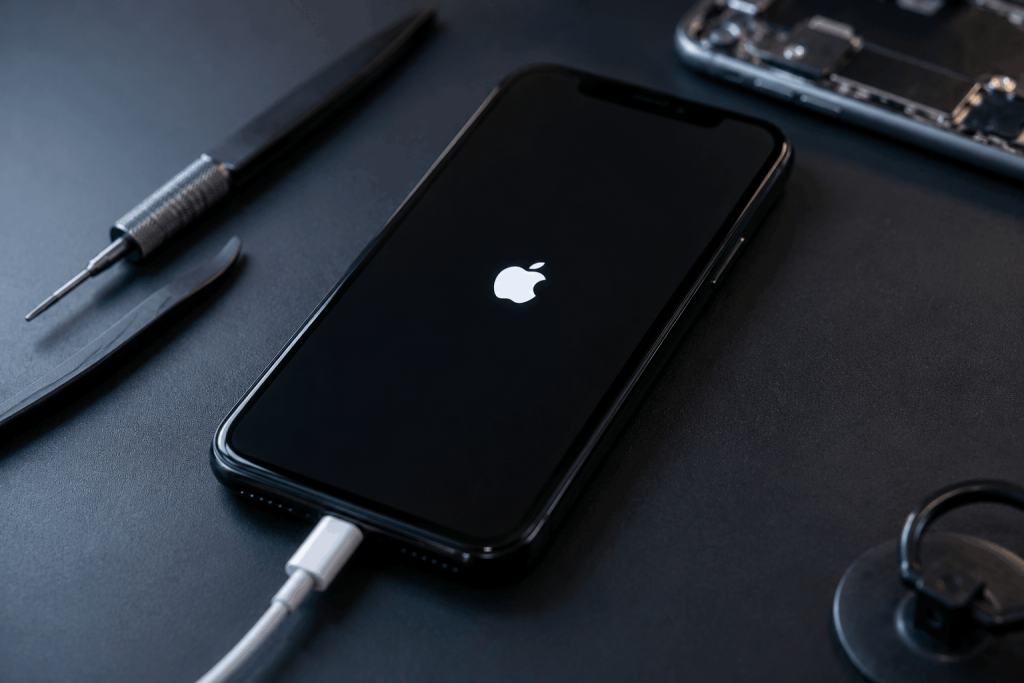
You press the side button and nothing happens. No Apple logo, no vibration, no response at all. It’s an unsettling moment — but a completely unresponsive iPhone doesn’t automatically mean the worst-case scenario. A surprising number of these cases are fixed with a few simple steps before any repair is needed.
This guide walks through what to try first, in order, and — just as importantly — how to tell when you’ve hit the point where it genuinely needs a technician rather than another restart attempt.
| Quick AnswerIf your iPhone won’t turn on, first try a force restart by quickly pressing volume up, volume down, then holding the side button until the Apple logo appears. If that doesn’t work, plug it into power for at least 15 minutes and try again. If there’s still no response — or you see a black screen after water exposure or a drop — it’s a hardware issue that needs a technician. |
Key Takeaways
- A force restart resolves a large share of ‘won’t turn on’ cases and takes less than a minute to try.
- A battery that’s completely drained can look identical to a dead phone — always charge for at least 15 minutes before troubleshooting further.
- A phone stuck permanently on the Apple logo (boot loop) is a different problem than a fully black, unresponsive screen.
- Any water exposure before the phone stopped responding changes the situation — avoid charging it until it’s been checked.
- Motherboard-level repair for a non-responsive iPhone is available in Sharjah with a free diagnostic and a 6-month parts warranty.
Step 1: Try a Force Restart
This is the single most effective first step and fixes a large percentage of unresponsive iPhones, especially ones that have simply frozen rather than suffered actual damage.
- Press and quickly release the volume up button.
- Press and quickly release the volume down button.
- Press and hold the side button until the Apple logo appears — this can take up to 20-30 seconds.
If the Apple logo appears and the phone boots normally, the issue was a software freeze, not a hardware fault.
Step 2: Rule Out a Dead Battery
A battery that’s completely drained can look exactly like a dead phone — no logo, no vibration, nothing on screen. Plug the iPhone into a working wall charger and cable, and leave it charging for at least 15 to 20 minutes before trying the force restart again. Sometimes the charging indicator won’t even appear immediately on a very deeply drained battery.
Step 3: Try a Different Cable, Adapter, and Outlet
It’s easy to assume the phone is the problem when actually the cable, wall adapter, or even the outlet itself has failed. Testing with a different combination rules this out quickly and costs nothing.
Common Scenarios and What They Usually Mean
Use this table to match what you’re seeing to a likely cause:
| What You’re Seeing | Likely Cause | DIY Fixable? |
| Completely black, no response at all | Dead battery or charging fault | Sometimes |
| Stuck on Apple logo, restarts repeatedly | Software boot loop | Sometimes |
| Black screen after being dropped | Internal hardware damage | No |
| Black screen after water exposure | Liquid damage to internal components | No |
| Screen flickers then goes black | Display connector or panel fault | No |
| Works after charging 20+ minutes | Battery was simply depleted | Yes |
Step 4: Try DFU Mode Only If You’re Comfortable
DFU (Device Firmware Update) mode is a deeper restore option that can resolve some software-level failures a normal restart can’t. It involves a specific button sequence and connecting to a computer with iTunes or Finder. This step is optional — if you’re not confident doing it, it’s completely reasonable to skip straight to a professional diagnostic instead.
When These Steps Mean It’s Hardware, Not Software
If a force restart doesn’t work, charging for 20+ minutes changes nothing, and a different cable and adapter make no difference, the cause is very likely internal — commonly a damaged charging circuit, a failed battery connector, or motherboard-level damage from a drop or liquid exposure.
A phone that was dropped or exposed to water shortly before it stopped responding should be treated as a hardware case immediately. In these situations, continuing to plug it in and try software fixes can occasionally make internal damage worse, especially with liquid exposure.
What Not to Do
- Don’t repeatedly plug and unplug the phone hoping it’ll eventually respond — this stresses a potentially damaged charging port or circuit.
- Don’t open the phone yourself to inspect internally — this risks further damage and can void any manufacturer or repair warranty.
- Don’t apply heat (like a hairdryer) to a water-damaged phone — this can push moisture further into the internals rather than drying it out.
What to Expect Getting It Fixed in Sharjah
If none of the troubleshooting steps bring your iPhone back, professional motherboard-level diagnosis and repair starts with a free assessment to pinpoint the exact fault — charging circuit, battery connector, or board-level damage. Most diagnoses are same-day, repairs carry a 6-month parts warranty, and the service covers iPhones across all generations.
Frequently Asked Questions
Why won’t my iPhone turn on even when it’s charging?
This usually means the charging indicator hasn’t appeared yet because the battery is very deeply drained, or there’s a fault in the charging port, cable, or battery connector preventing power from reaching the battery.
How do I force restart an iPhone?
Quickly press and release volume up, then quickly press and release volume down, then press and hold the side button until the Apple logo appears.
Is a black screen always a hardware problem?
No. A black screen can be a drained battery, a software freeze, or a display connector issue. Charging for 20 minutes and attempting a force restart rules out the simplest causes first.
Should I try to fix a water-damaged iPhone myself?
It’s best not to charge or force restart a phone that’s had recent water exposure. Avoid heat as well, and have it assessed by a technician before attempting to power it on repeatedly.
What is DFU mode and do I need it?
DFU mode is a deeper restore option that can fix some software failures a normal restart can’t. It’s optional — if you’re unsure how to do it safely, a professional diagnostic is a reasonable alternative.
How much does it cost to fix an iPhone that won’t turn on?
It depends on the underlying cause, which is why diagnosis comes with a free quote before any repair work begins.
The Bottom Line
Most unresponsive iPhones aren’t as dire as they first appear — a force restart and a proper charge resolve a surprising number of cases. But if you’ve tried everything above and there’s still no response, especially after a drop or water exposure, it’s time for a proper diagnostic rather than more troubleshooting at home. Bring it in for a free assessment and same-day repair where possible, backed by a 6-month parts warranty.